



In this digital age, managing compressed files like 7z and RAR on your Android device is a must. Whether you’re downloading games, apps, or large collections of files, ZArchiver is an essential tool to help you extract these archives easily. Here’s a comprehensive guide to extracting 7z and RAR files using ZArchiver on Android.
Step 1: Download and Install ZArchiver
- Open Google Play Store: On your Android device, open the Google Play Store.
- Search for ZArchiver: In the search bar, type “ZArchiver” and hit search.
- Install the App: Find ZArchiver in the search results and tap on it. Click “Install” to download and install the app on your device.

Step 2: Locate Your 7z or RAR File
- Open ZArchiver: Launch the ZArchiver app from your app drawer.
- Navigate to Your File: Use the file explorer within ZArchiver to locate the 7z or RAR file you want to extract. The file could be in your Downloads folder or any other directory you saved it in.
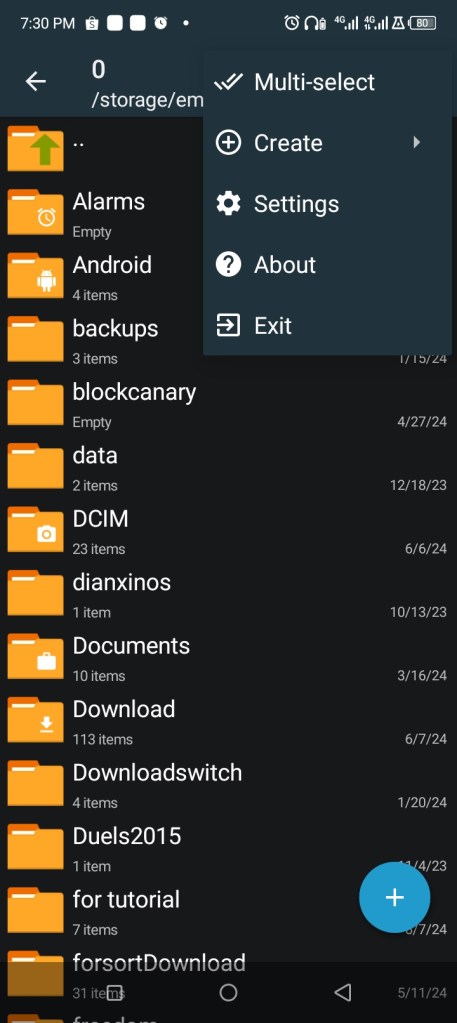
Step 3: Extract the File
- Select the File: Tap on the 7z or RAR file you want to extract.
- Choose “Extract Here” or “Extract to…”: A menu will pop up with several options. Select “Extract Here” to extract the contents in the current directory or “Extract to…” if you want to specify a different directory.
- Wait for Extraction: ZArchiver will begin extracting the file. This may take a few seconds to a few minutes, depending on the file size.

Step 4: Access Extracted Files
- Open the Extracted Folder: Once the extraction process is complete, you’ll see a new folder with the extracted files.
- Access Your Files: Open the folder to access your files. You can now use these files as needed on your Android device.
Tips and Tricks for Using ZArchiver
- Password-Protected Archives: If your archive is password-protected, ZArchiver will prompt you to enter the password during extraction. Simply type in the password, and it will proceed with the extraction.
- Compression Options: ZArchiver isn’t just for extracting files; you can also create compressed files. Select files or folders, then choose “Compress” from the menu to create a new 7z or RAR file.
- File Management: Use ZArchiver to manage your files efficiently. You can copy, move, delete, and rename files directly within the app.


Alternative Apps
If ZArchiver doesn’t meet your needs, there are other apps available on the Google Play Store for extracting 7z and RAR files, such as:
- RAR: Developed by RARLAB, the makers of WinRAR, this app is another powerful tool for managing compressed files.
- B1 Archiver: A user-friendly app that supports various archive formats, including 7z and RAR.
Conclusion
Extracting 7z and RAR files on your Android device is simple and efficient with ZArchiver. This powerful app makes managing compressed files a breeze, ensuring you can access and use your data whenever you need it. Download ZArchiver today and streamline your file management tasks on Android.
For a detailed walkthrough, check out my YouTube video tutorial:
Disclaimer: This guide is for educational purposes only.


