


Are you ready to streamline your Terabox file downloads on your PC/Mobile? want to get rid of annoying ads? Follow these simple steps for a hassle-free experience:
Step 1: Prepare Your PC/MOBILE
Ensure you have a stable internet connection and an updated web browser on your PC/Mobile. For a smooth download, we recommend using;
- Microsoft Edge (PC)
- Microsoft Edge (mobile)
Step 2: Sign In or Create an Account
If you don’t have one already, sign up for a Terabox account. Having an account can make the process more convenient and unlocks additional features.

Step 3: Visit the Download Link
Go to the download link for the file you want on your pc/mobile. Clicking this kind of link will take you to the security link page.

Step 4: Navigate the Security Links
On the security link page, you’ll typically encounter three steps 3/3. Here’s the trick: simply scroll down and wait a few seconds (around 10 to 5 seconds) on each security link page. No need to click anything during this time.
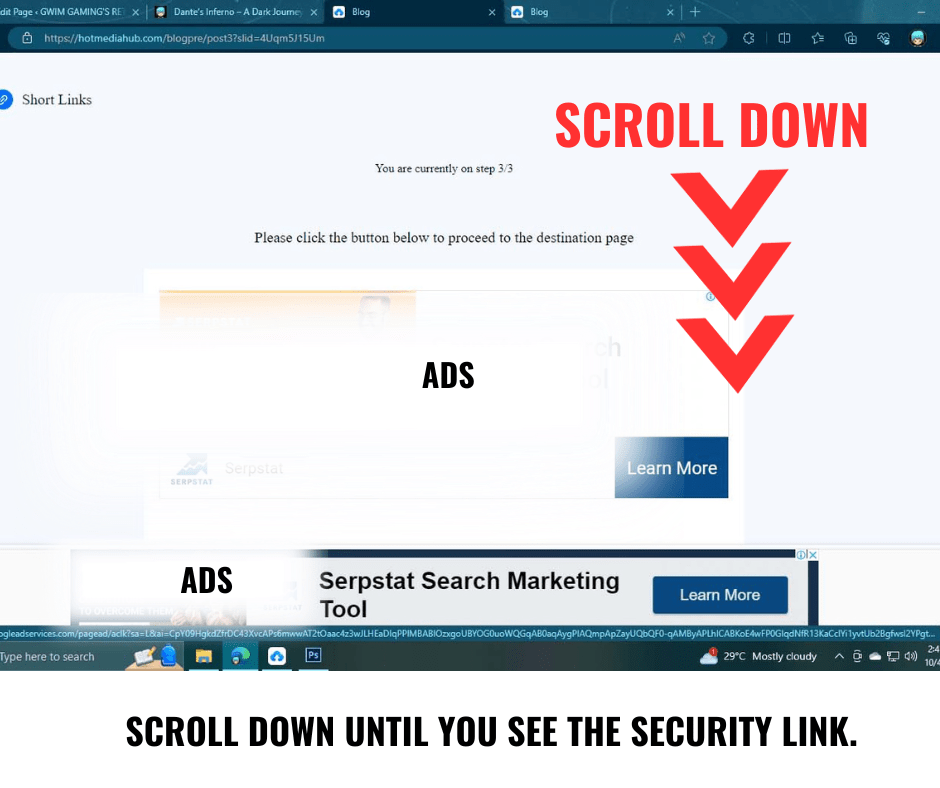

Step 5: Final Security Link
After waiting on each security link page [3/3], the final one will lead you to the download link. No further action is needed. You’ve successfully navigated through the security links.
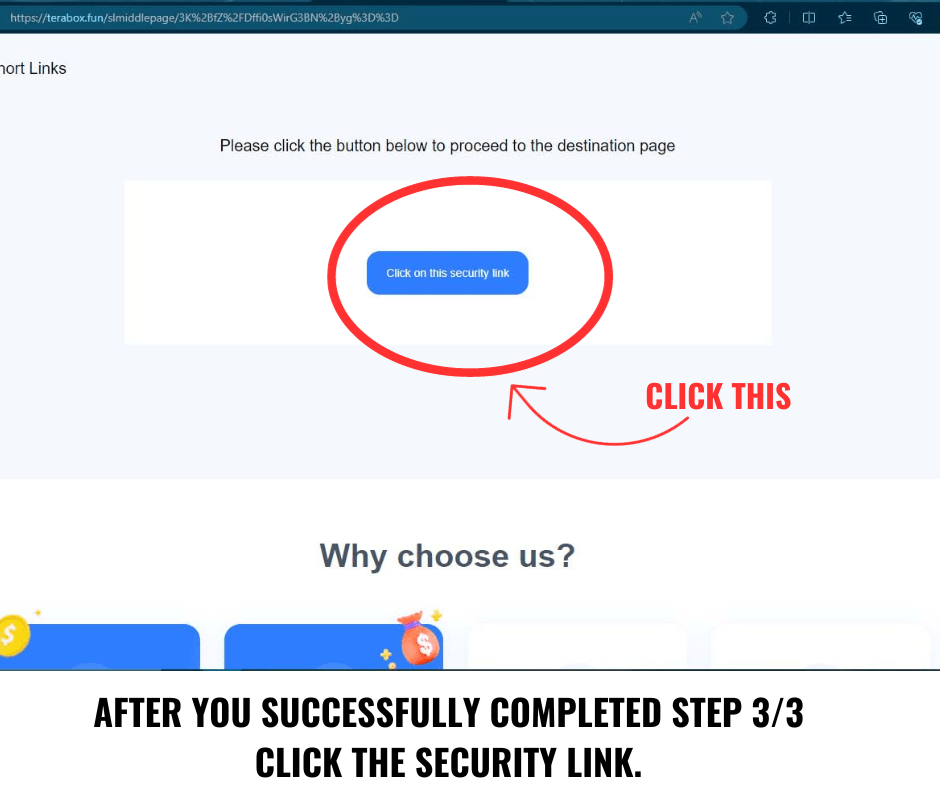
Step 6: Begin the Download
On the last security link page, the download link will be revealed. Click on it to initiate the download. Depending on your internet speed and file size, it may take a moment to complete.

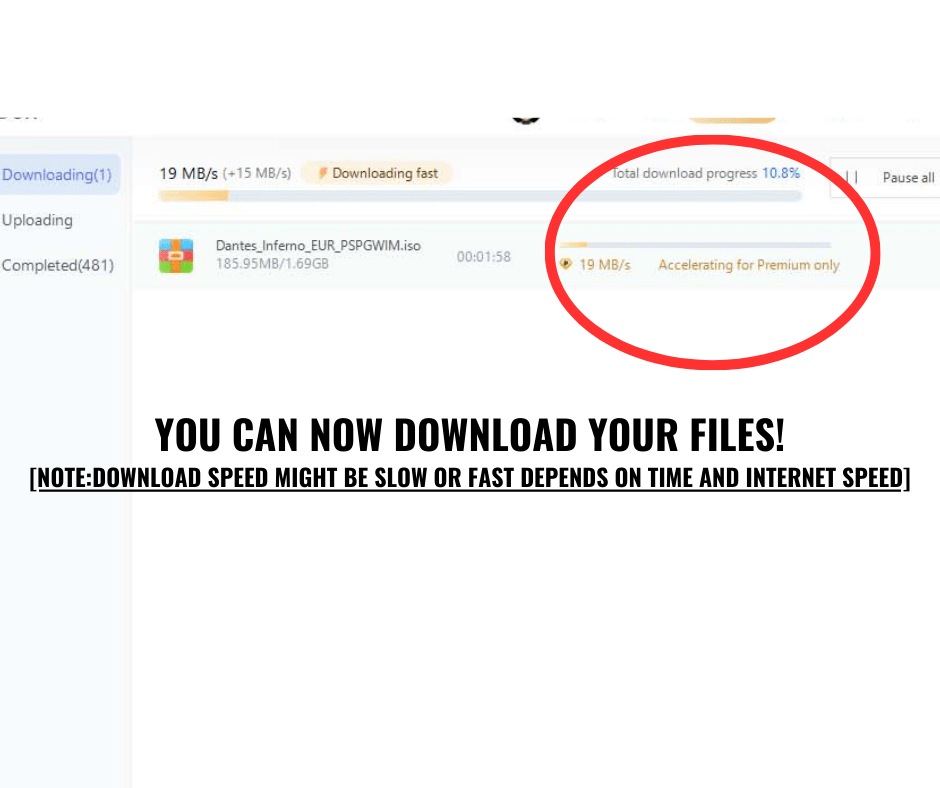
Pro Tips:
- Fast Connection: Maintain a stable internet connection on PC or Mobile for the best experience.
- Keep Updated: Use the latest version of your browser or download manager for optimal performance.
- Check Your Path: Double-check your “Save to” folder before starting so you don’t lose your files!
- Go Premium for Large Files: If you are downloading files larger than 4GB or want high-speed downloads, a TeraBox Premium account is recommended to bypass standard speed limits.
With these quick steps and the use of Microsoft Edge on your PC, Terabox file downloads become effortless. Happy downloading

